Acorn Chess Multiplayer – Step-by-Step Guide
Acorn Chess multiplayer lets you play supported mini-games and full chess games online with members of your private group. You can play directly in your browser on a computer, tablet or phone, or use the Acorn Chess desktop application.
Choose how you want to play:
Play in your browser — easiest way to get started
No installation required. Create or join a group at play.acornchess.com
Use the Acorn Chess desktop application
Use Multiplayer from within the full Acorn Chess application.
Playing in your Browser
The easiest way to get started — no installation is required
Step 1 — Open Acorn Chess Online
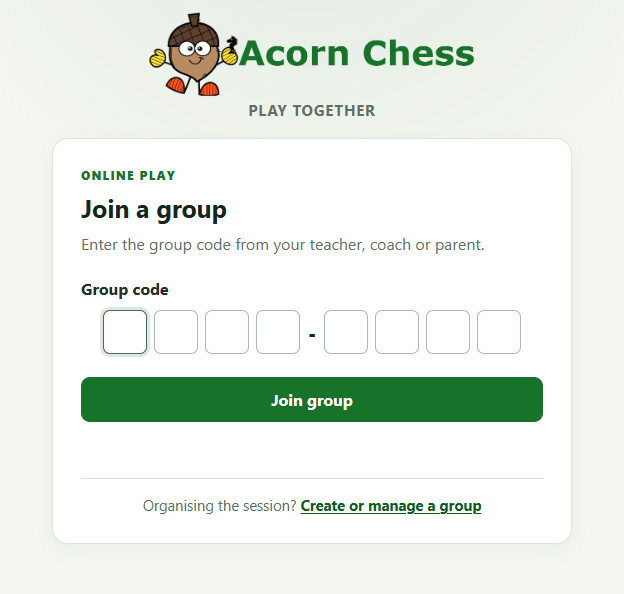
Go to play.acornchess.com
Step 2 — Create a group
If you are setting up multiplayer for a class, chess club, family or group of friends, click the Create or manage a group link below the Join Group action.
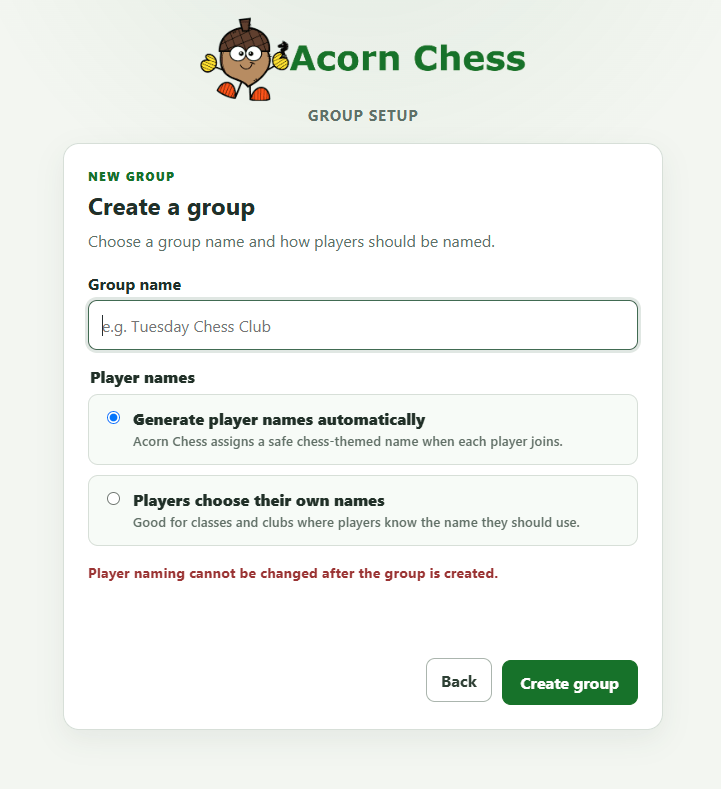
Enter a name for your group and choose how player names should be assigned. Acorn Chess can generate chess-themed names automatically, or you can allow players to choose their own names.
For shared computer environments like a classroom the recommendation is to generate player names automatically.
Once the group has been created, you will become its owner and can manage the group from your browser.
Step 3 — Invite players
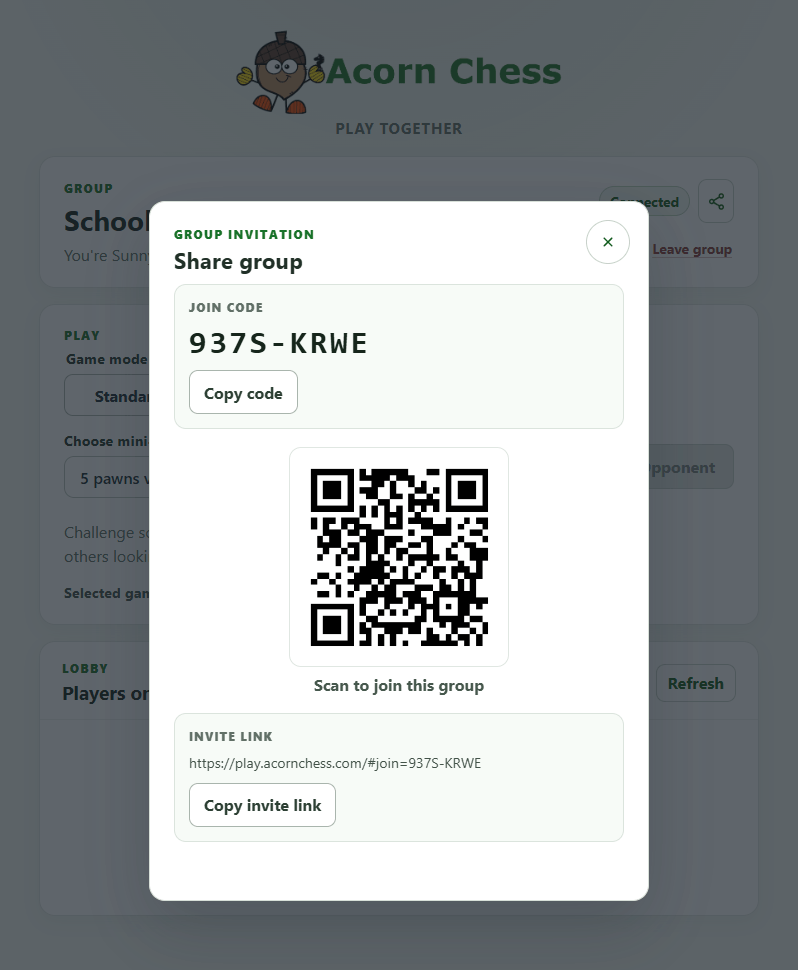
Use the Share group option to invite other players. You can share the group’s join code, let players scan the QR code, or copy and send them the invite link.
Players only need one of these to join your private group.
Step 4 — Join a group
Players can open the invite link, scan the QR code, or go to play.acornchess.com and enter the group’s join code.
If the group uses automatically generated player names, Acorn Chess will assign a chess-themed name when the player joins. If the group allows players to choose their own names, they will be asked to enter a name before joining.
Step 5 — Choose what to play
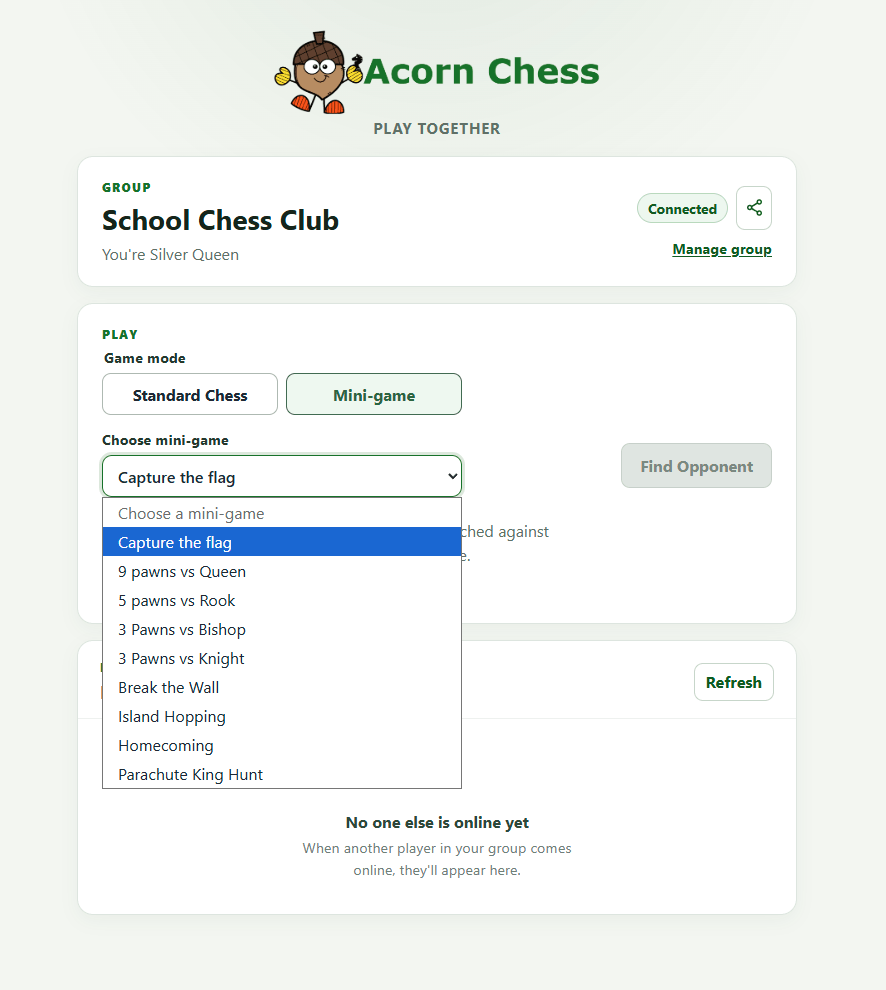
Once you are in the group, choose between Standard Chess and Mini-game. If you select Mini-game, choose the Acorn Chess mini-game you want to practise.
Everyone playing together should select the same game or mini-game before looking for an opponent.
Step 6 — Challenge a player or find an opponent
You can challenge a specific player who is currently online, or select Find Opponent to be matched with another member of your group who is looking for an opponent for the same game.
Acorn Chess only matches you with players from your private group — not with random players outside it.
Step 7 — Play together
When a challenge is accepted or a match is found, the game starts automatically in your browser. Make your moves as normal and Acorn Chess will keep both players’ boards in sync.
When the game is finished, you can return to your group and start another game or mini-game.
Using Multiplayer in the Acorn Chess application
Already use the Acorn Chess desktop application? Follow these steps to play online from within the installed application.
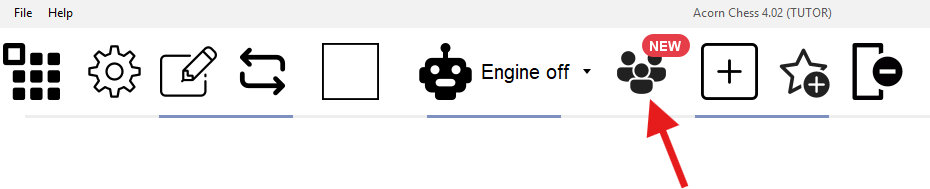
Step 1 - Find the Online Play button
The Online Play button is available in the toolbar. When Online Play is first introduced, you may see a red NEW badge on the button.
Step 2 - Enable Online Play
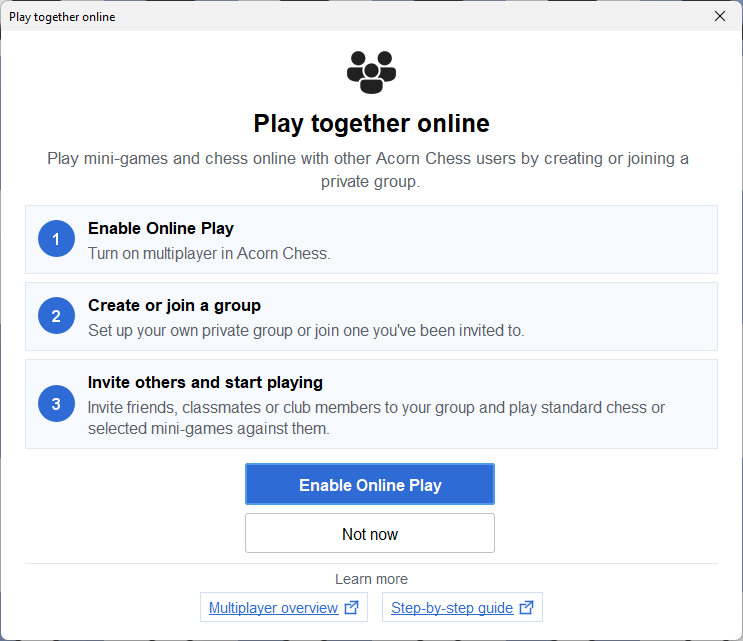
Click the Online Play button to see a short introduction to playing online.
Select Enable Online Play to turn on multiplayer. You can then create your own private group or join a group you've been invited to.
Step 3 - Create a Group
Select the Online Play button in the toolbar to see two options: Create Group and Join Group. Joining an existing group is covered in Step 6
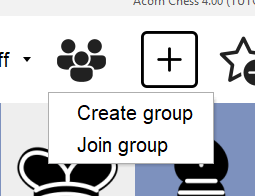
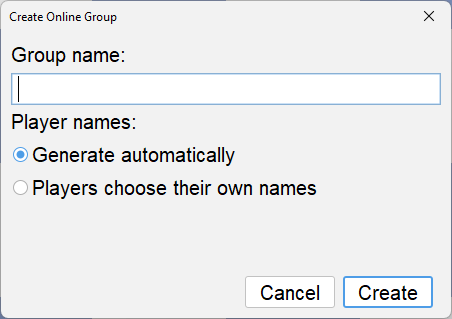
Click Create Group and enter a name for your group and choose how player names should be assigned. Acorn Chess can generate chess-themed names automatically, or you can allow players to choose their own names.
For shared computer environments like a classroom the recommendation is to generate player names automatically.
You should then see a confirmation that the group has been created
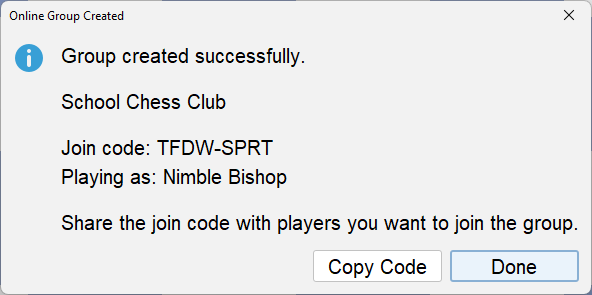
Acorn Chess will create the group and generate a unique join code. Share this code with the people you want to invite to the group.
You can belong to one group at a time. To join a different group, you must first leave your current group.
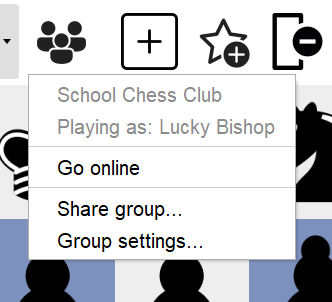
Step 4 - Online Group Owner Options
After creating a group, click the Online Play button to see the available group options.
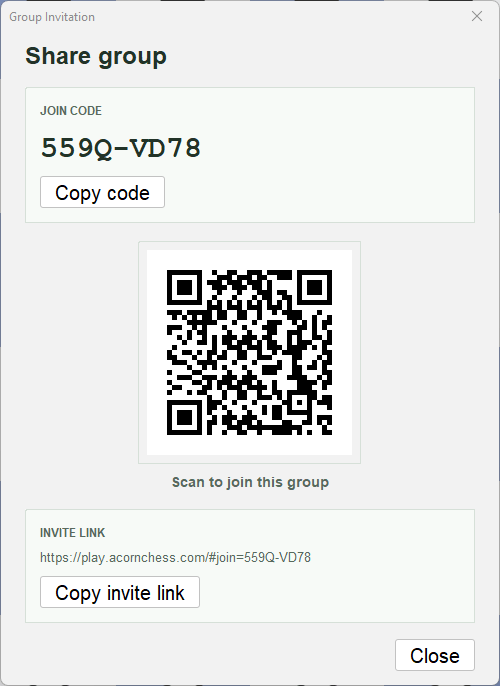
Step 5 - Share Group
Once a group has been created, other players can be invited to join. You can share the group’s join code, let players scan the QR code, or copy and send them the invite link.
Only share the code with people you want to join the group.
Join a group
Step 6 - Joining a Group
Anyone joining a group must first enable Online Play as described in Step 2.
Acorn Chess supports membership of one group at a time. If you are already in a group, you must leave it before joining another.
Click Join Group from the Online Play menu to display the following dialog.
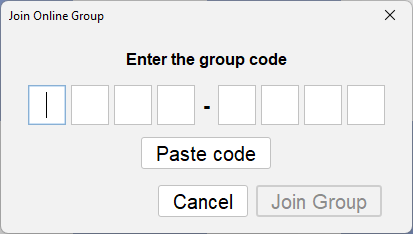
Enter the group code and select Join Group.
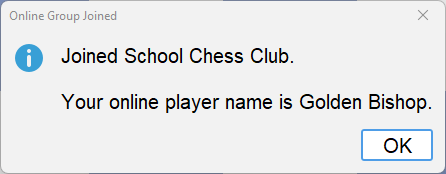
If the group uses automatically generated player names, Acorn Chess will assign a chess-themed name when the player joins. If the group allows players to choose their own names, they will be asked to enter a name before joining.
Once joined, Acorn Chess remembers the group the next time the application is started.
Step 7 – Go Online
Once you have created or joined a group, you can connect to Acorn Chess multiplayer.
Acorn Chess starts in offline mode by default. Click the Online Play button in the toolbar and select Go Online whenever you want to play online.
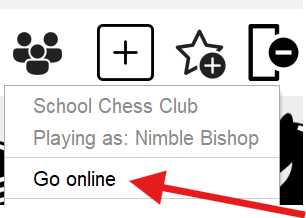
Once connected, the multiplayer controls for finding or challenging other players will become available in supported games.
You will need to select Go Online each time you start Acorn Chess and want to use multiplayer.
Play online
Step 8 - Playing an online game
Once a group has at least two members, you can start playing online.
First, open the game you want to play. Multiplayer is available for supported Acorn Chess mini-games as well as standard chess games and positions.
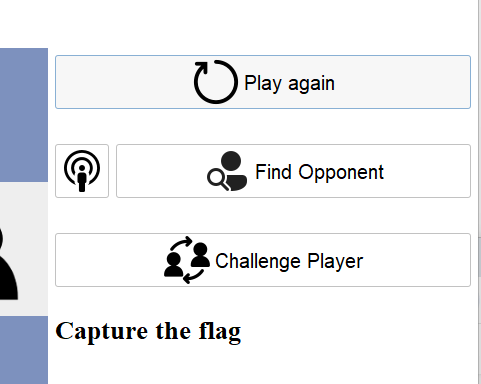
When the selected game supports online play, the multiplayer controls will appear on the right-hand side.
Step 9 - Challenging a player to a game
Click Challenge Player to see the group members currently available to play. Unavailable players are shown in grey with their current status.
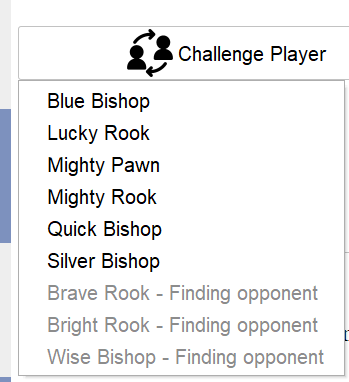
Select a player to send them a challenge. They can accept or decline the challenge from their own Acorn Chess application.
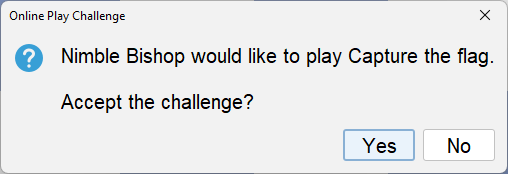
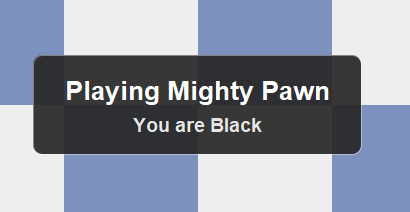
When the challenge is accepted, the game starts automatically for both players. Each player sees a temporary message confirming their opponent and the colour they are playing.
Step 10 - Finding an opponent automatically
You can also select Find Opponent. Acorn Chess will look for another available player within your private group who is also searching for the same game as you. Matchmaking never takes place against players outside your group.
Step 11 - Ending an online game
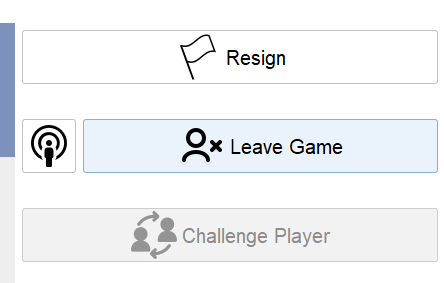
While a game is in progress, the controls on the right-hand side allow you to Resign or Leave Game. For standard chess games, an Offer Draw option is also available.